
Menu Bar Utilities Prepare for the Next Mac Update
· 2 min read · BrandRegard Editorial Team
Menu bar utility makers are preparing for a new Mac release that changes how third-party icons are placed. This story summarizes the three changes developers are watching, a rollout timeline and what Mac owners can do before updating.
Contents

Developers of small Mac utilities are busy this month. A new system release is close, and it reshapes the menu bar in ways that touch almost every background app.
What is changing in the menu bar
The new release gives the system more control over how status icons are ordered and hidden. Apps that draw their own icons may need small updates so they stay visible after the upgrade.
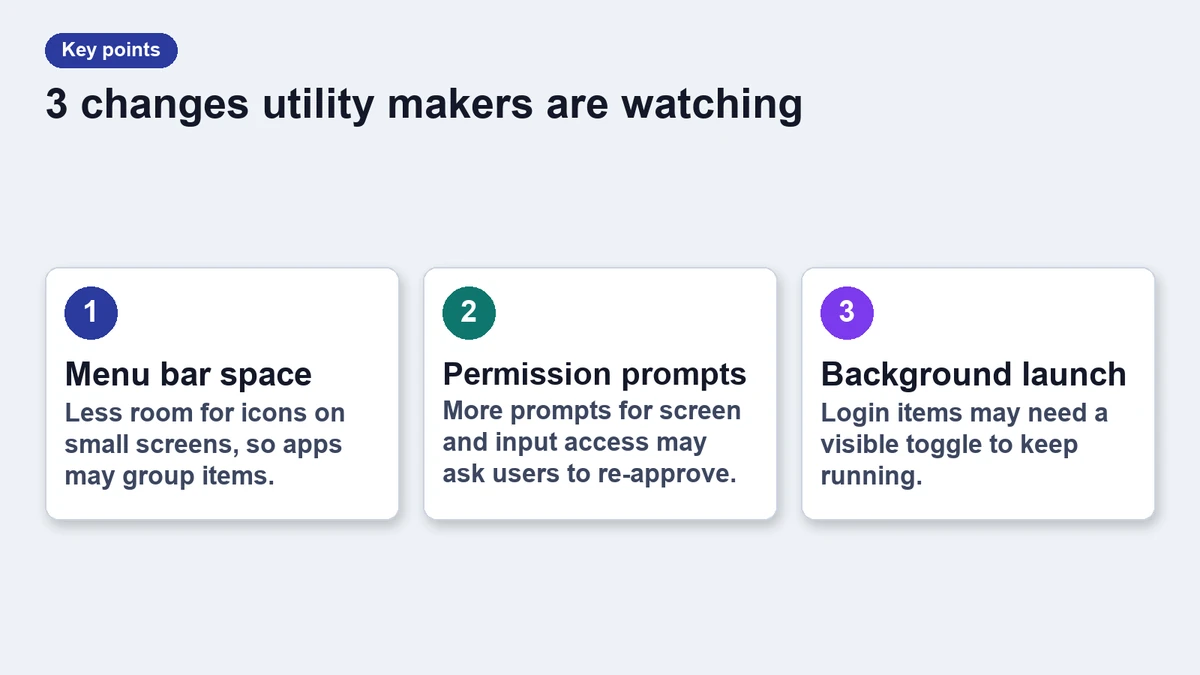
Three changes developers are watching
- Icon ordering: the system may reorder icons when space runs out.
- Overflow handling: hidden icons move to a shared tray instead of disappearing.
- Permissions: apps that read other icons may need a new approval prompt.
Rollout timeline
The table shows a schedule that mirrors how updates usually reach users. Beta builds come first, followed by a release candidate and a public launch.
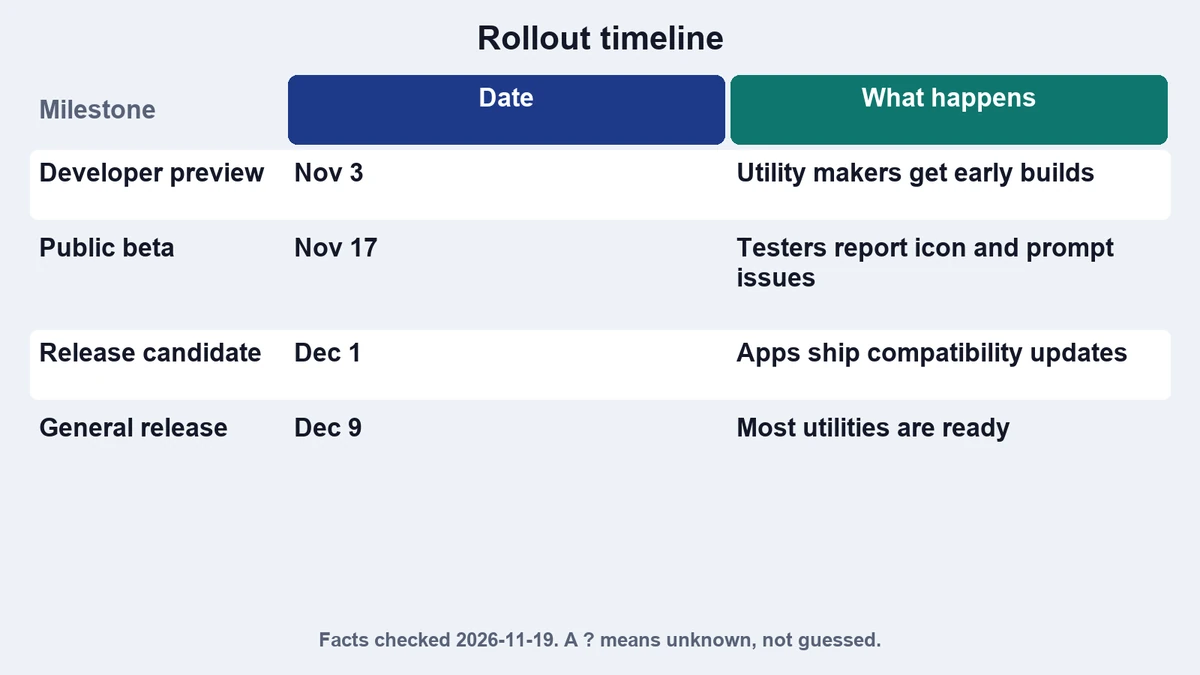
| Stage | Date | What happens |
|---|---|---|
| Developer beta | 3 Nov | Utility makers test icon placement |
| Public beta | 17 Nov | Early adopters report layout bugs |
| Release candidate | 1 Dec | Final fixes land in most utilities |
| Public release | 9 Dec | Most Macs receive the update |
What Mac owners can do now
Check that your menu bar apps are up to date before installing the new release. If an app has not been updated in a long time, look at a maintained alternative first. Our guide on organizing the menu bar explains how to keep icons under control.
- Open each utility and check for updates.
- Back up your settings if the app offers an export.
- Wait one week after launch if you rely on a specific utility.
Why small apps feel the change first
Large apps rarely depend on the menu bar. Small utilities live there, so a layout change can break their main feature. That is why the first bug reports usually come from tools that hide icons, manage clipboards or show system stats.
Developers also share notes in public forums, and many publish short fixes within days. If you follow one or two utilities you rely on, you will often see a compatibility note before the system update arrives. For clipboard tools, see our free clipboard manager roundup.
What to expect next
Expect a busy December of point releases. Most utilities will ship at least one compatibility update, and a few will add features that use the new tray. We will update this page if the timeline changes.
What this means for small developers
Independent developers carry most of the work. They test on several system versions, answer support mail and ship fixes in short cycles. A clear schedule from the platform helps them plan, and early beta builds make a real difference.
Frequently asked questions
Will my menu bar icons disappear after the update?
Not usually. Icons that do not fit move to a shared tray, and updated apps can control where they appear.
Should I update on day one?
If you depend on a specific utility, wait a week and read its release notes first.
Where can I check compatibility?
Each utility publishes compatibility notes on its own site and in its release notes.


